 — docs

Pages
Translate Pages
Create a translation of a page
- Open the Page Module: In the backend, navigate to the Page module.
- Select the Page: Find and click on the page you want to translate.
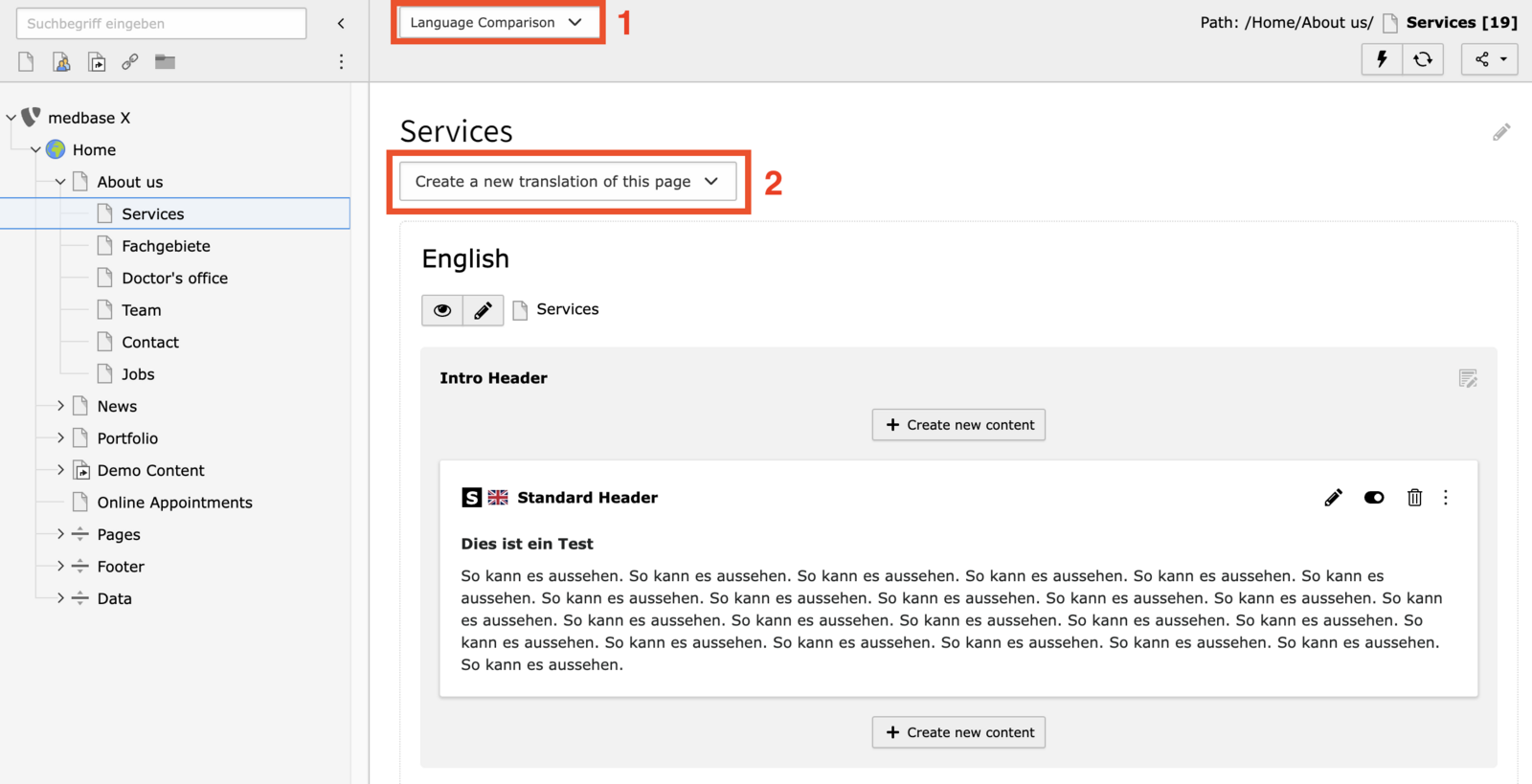
- In the view selection (1), select Language Comparision.
- In the Language select, you'll see all available languages that are not yet created in the translated version. Select the language you want to create a translation for from the list of available languages.
- Edit the Translated Page:
- After selecting the language, a new version of the page will be created. You can edit the title, and other properties in this version to reflect the translated content.
- Save Changes: Once you’ve made the necessary changes, save the translated page.
The translated page will now be linked to the original page, allowing visitors to switch between languages if language navigation is set up on the site.
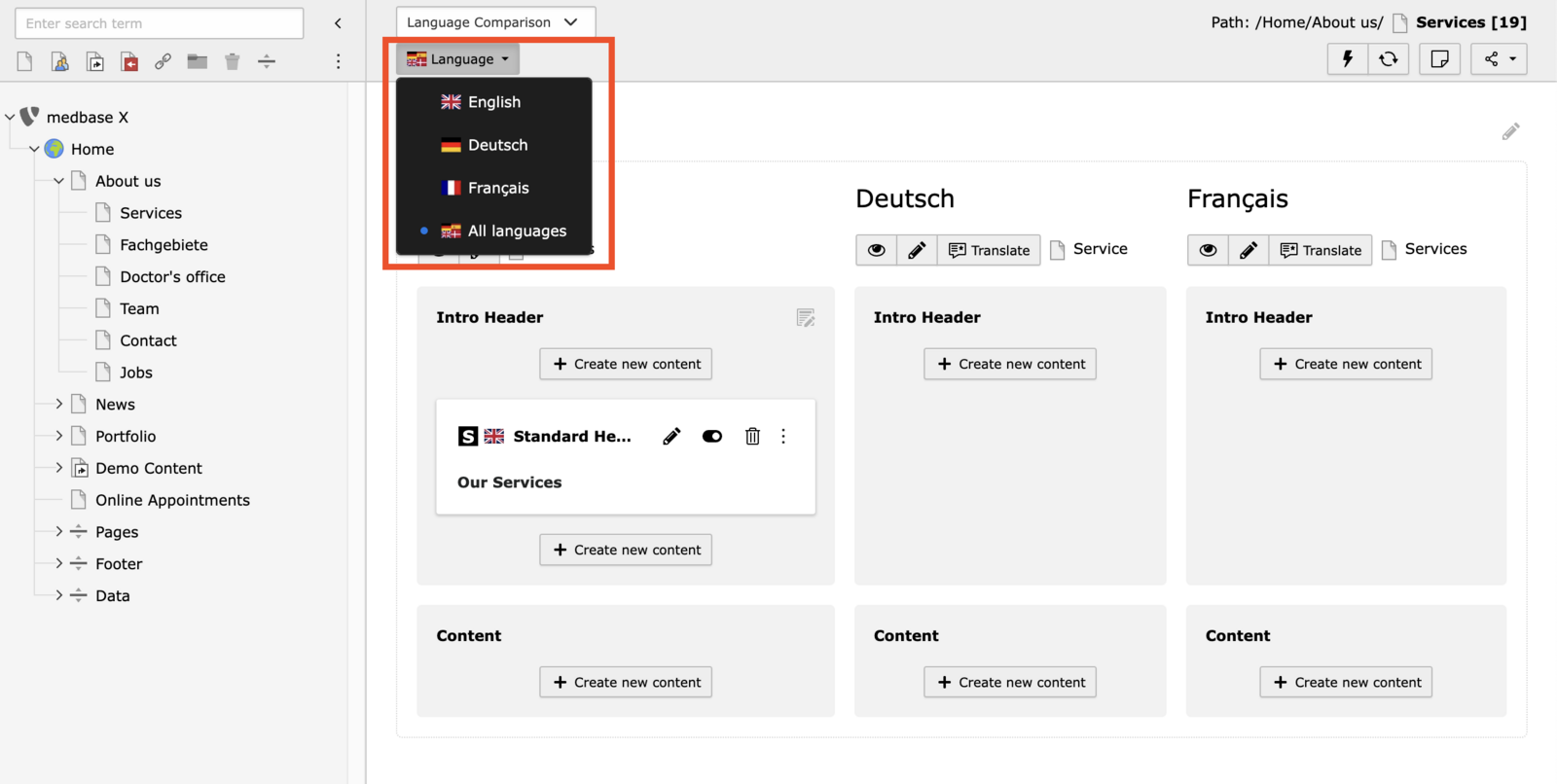
Display existing translated versions
In the language switch, you can switch between translated versions of the page or display all translated languages next to each other.
Translate and edit content
To translate and edit content, see:
https://docs.medparadigm.net/content/create-edit-translate/translate-content